When you want to collect information, feedback, or registrations online, forms are the tool of choice. But not all forms work the same way. Some feel boring and old-fashioned, while others are interactive and easy to use. Today, more people expect forms to be simple, engaging, and even a bit fun. That’s where an interactive form builder comes in. Whether you’re a business owner, a teacher, or just someone who needs to gather data, the right interactive form builder can make a huge difference.
But with so many form builders out there, how do you choose? What features really matter? And how do leading tools like Typeform stand out from the crowd? In this guide, you’ll find everything you need to know about interactive form builders. You’ll see how they work, what features to look for, and how they can solve real problems. You’ll also see comparisons between top products, with a clear look at why Typeform is often the better choice.
What Is An Interactive Form Builder?
An interactive form builder is a digital tool that lets you create online forms with advanced features. Unlike static forms, interactive forms respond to users’ input in real time. They guide people step by step, offer friendly feedback, and can even change questions based on earlier answers.
For example, if a user says they want to register for a webinar, the form might show extra questions about their job or interests. If they pick “no” to a question, those follow-up questions disappear. This is called conditional logic. With interactive forms, the experience feels more personal and less like filling out paperwork.
Interactive form builders are used for:
- Surveys and polls
- Event registrations
- Customer feedback
- Job applications
- Online quizzes
- Lead generation
Why Interactive Forms Matter
In the past, most online forms looked the same: a long list of fields, all at once. This design was easy for creators, but not for users. Many people left forms unfinished because they felt bored, confused, or overwhelmed.
Interactive forms solve these problems in a few key ways:
- Higher completion rates – When forms feel conversational and guide users step-by-step, more people finish them.
- Better data quality – Interactive forms can prevent mistakes by validating answers as users type.
- Personalized experiences – Forms that adapt to users’ answers make people feel understood.
- Mobile-friendly design – Today, many interactive builders focus on mobile users, so forms work well on any device.
Research shows that when forms are short, friendly, and interactive, completion rates can increase by up to 40%. For businesses, that means more leads, more feedback, and better results.
Key Features Of An Interactive Form Builder
Not all form builders are equal. If you want to choose the best tool, look for these important features:
1. Drag-and-drop Form Creation
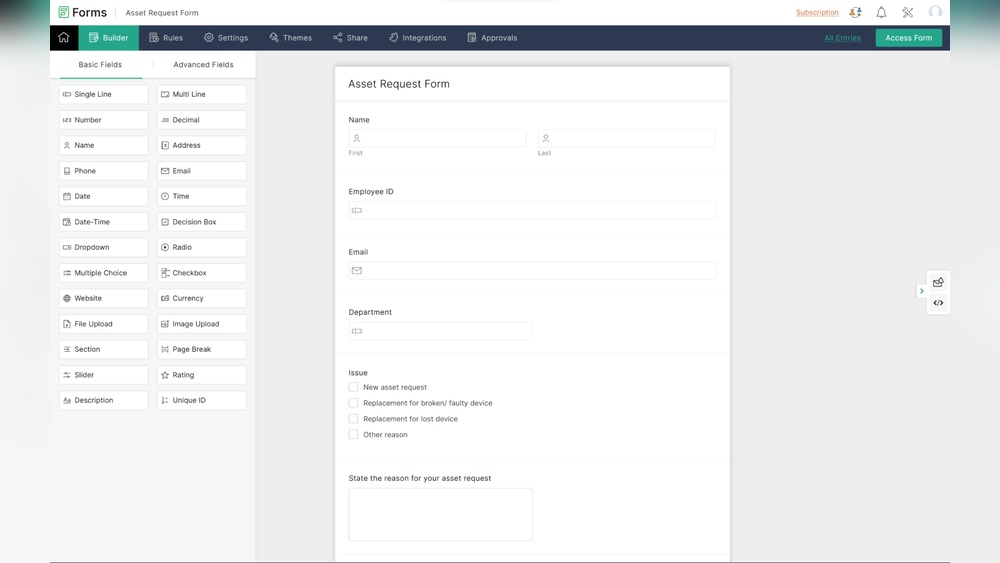
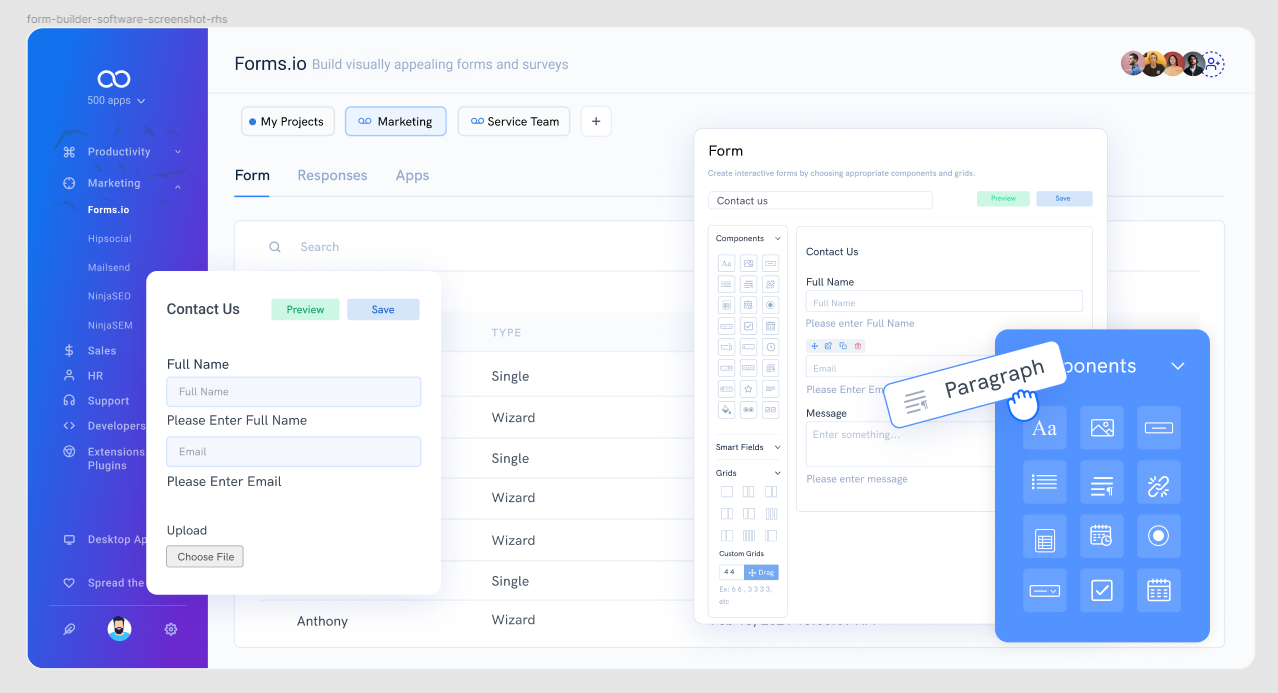
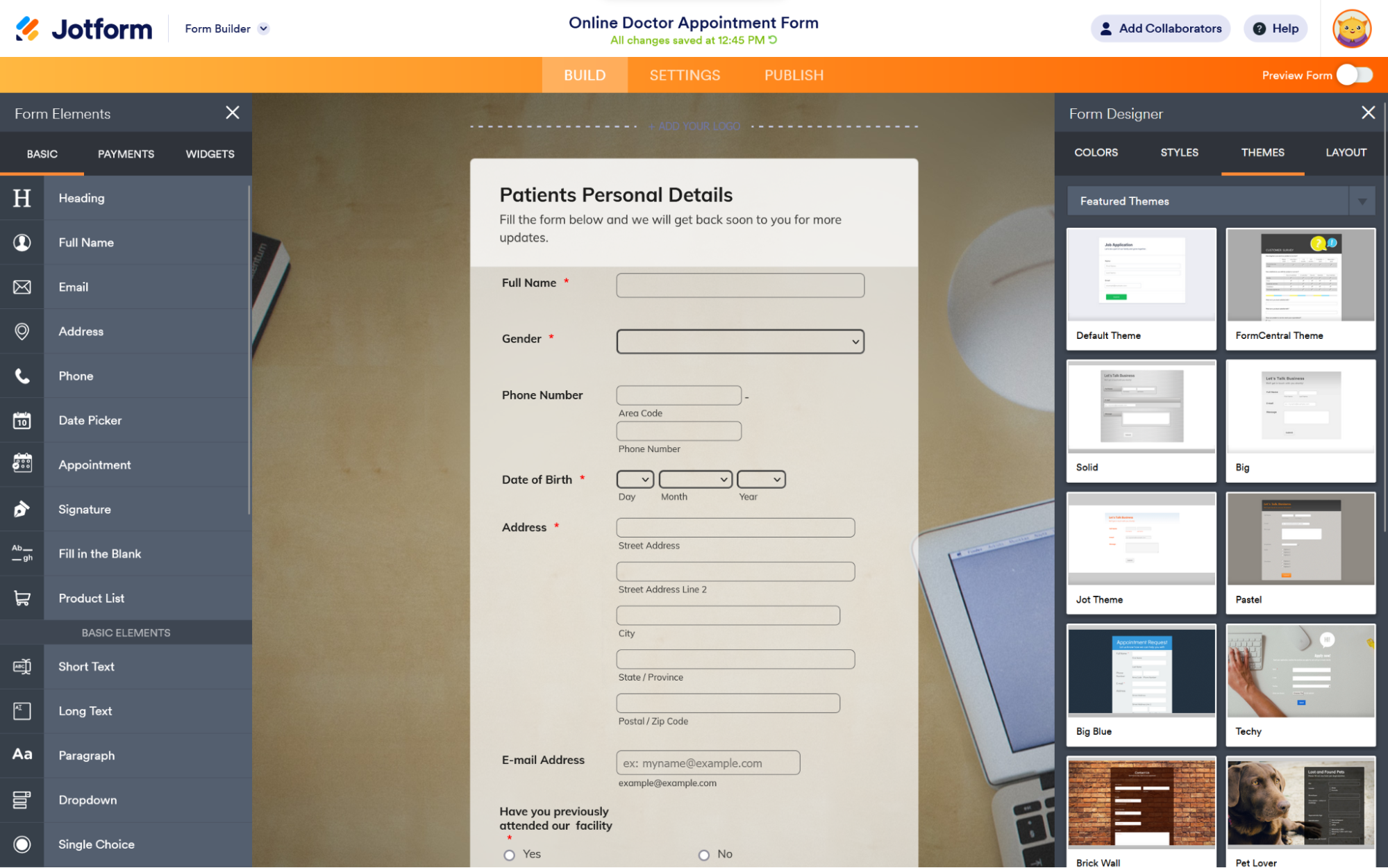
A good builder lets you create forms by dragging and dropping elements like text fields, multiple choice, or rating scales. You don’t need to know any code.
2. Conditional Logic
This feature allows forms to change based on users’ answers. For example, if someone says they are a student, the next questions can focus on their school or studies.
3. Real-time Feedback
Interactive forms can show helpful messages as users fill them out. For example, if an email address is typed incorrectly, the form points it out right away.
4. Multi-step Forms
Instead of showing all questions at once, forms can split into pages or steps. This makes long forms less overwhelming and more engaging.
5. Custom Design And Branding
You should be able to add your logo, colors, and fonts, so your form matches your brand.
6. Easy Integrations
Top form builders connect with tools you already use, like Google Sheets, Slack, or Mailchimp. This means you can send data where you need it, automatically.
7. Analytics And Reporting
You can track how many people start and finish your form, where they drop off, and other important data.
8. Mobile Optimization
With more people using smartphones, forms must look and work great on small screens.
9. Security And Privacy
Look for features like SSL encryption, GDPR compliance, and data protection. This is especially important if you’re collecting sensitive information.
10. Templates And Examples
Pre-made templates help you get started faster, whether you need a feedback survey or a registration form.
How Interactive Form Builders Solve Real Problems
To see the value of an interactive form builder, let’s look at some real-world challenges and how these tools fix them.
Problem 1: Low Survey Response Rates
If your feedback surveys get ignored, it’s often because they feel like work. Interactive forms make surveys feel more like a conversation. For example, Typeform presents one question at a time, making it less stressful for users. As a result, brands like Airbnb and HubSpot have seen response rates rise significantly after switching to interactive forms.
Problem 2: Bad Data From Mistakes
When users enter the wrong type of information (like a phone number in an email field), your data suffers. Interactive builders use real-time validation, catching errors early. This saves you hours of cleaning up bad data.
Problem 3: High Drop-off On Long Forms
Long, complicated forms can scare people away. Multi-step forms break the process into easy chunks. People only see what matters to them, thanks to conditional logic. This keeps users engaged and reduces drop-offs.
Problem 4: Difficulty Matching Company Branding
Generic forms look unprofessional and don’t build trust. Interactive builders with strong design options let you match your brand’s style. Typeform is especially known for beautiful, customizable forms that feel unique.
Problem 5: Manual Data Entry
Copying form data by hand is slow and leads to mistakes. Integrations with tools like Google Sheets or CRM systems automate this, saving you time and effort.

Credit: www.typeform.com
Comparing Top Interactive Form Builders
There are many tools for building interactive forms, but some stand out more than others. Here’s a closer look at the most popular options, and why Typeform is often the best choice.
1. Typeform
Typeform is famous for its conversational, one-question-at-a-time interface. Users love its clean design and smooth experience. It offers strong features like conditional logic, integrations, analytics, and excellent templates. Forms look good on any device, and customization is easy.
Key strengths:
- Highly engaging user experience
- Powerful logic and branching
- Beautiful, modern designs
- Easy to integrate with other tools
2. Google Forms
Google Forms is simple and free. It connects well with Google products, but its design is basic. Conditional logic is limited, and branding options are weak. It’s good for quick internal surveys, but less impressive for customer-facing forms.
3. Jotform
Jotform offers many question types and good integrations. It has conditional logic and a drag-and-drop builder. However, its interface feels more traditional, and forms can look cluttered. Customization is possible, but the results are less visually appealing than Typeform.
4. Surveymonkey
SurveyMonkey is known for surveys and data analysis. It has advanced logic and strong reporting, but its forms are less flexible for other uses (like registrations or quizzes). Design options are limited, and branding can be tricky.
5. Wufoo
Wufoo is easy to use and has good integrations, but its templates and designs feel outdated. Conditional logic exists, but is not as user-friendly as newer tools. Wufoo is better for simple forms.
Product Comparison Table
Below is a quick comparison of the most popular form builders for features and design.
| Form Builder | Conditional Logic | Design Quality | Integrations | Mobile Optimization | Brand Customization |
|---|---|---|---|---|---|
| Typeform | Excellent | Modern & Beautiful | Extensive | Great | Full |
| Google Forms | Basic | Minimal | Google-only | OK | Limited |
| Jotform | Good | Average | Good | Good | Partial |
| SurveyMonkey | Advanced | Average | Good | Good | Limited |
| Wufoo | Basic | Outdated | Good | OK | Limited |
From the table, you can see that Typeform stands out in design, logic, and branding. This is why many businesses and organizations prefer it, especially when user experience matters.
How To Choose The Right Interactive Form Builder
Not every business or project has the same needs. Here’s how to think about your choice:
Understand Your Main Goal
Are you collecting feedback? Registering people for events? Running a quiz? Some form builders are better for surveys (like SurveyMonkey), but if you want all-around power and a great look, Typeform is a smart choice.
Consider Your Audience
If your users expect a modern, mobile-friendly experience, pick a tool that focuses on design and ease of use. Typeform’s one-question-at-a-time approach reduces overwhelm, which is especially helpful for non-native English speakers or people new to online forms.
Think About Integrations
If you use tools like Zapier, Mailchimp, or HubSpot, make sure your form builder connects easily. This automates your workflow and saves time.
Check Customization And Branding
Branding builds trust. Typeform allows deep customization—colors, logos, backgrounds—so your forms feel like an extension of your website.
Look At Reporting And Analytics
If you need to track who started, completed, or dropped off your form, pick a builder with strong analytics. Typeform gives clear, useful reports.
Don’t Forget Support And Security
Make sure the tool offers good support, clear documentation, and follows privacy laws. For example, Typeform complies with GDPR and offers data encryption.
Credit: www.agilecrm.com
Building Your First Interactive Form: Step-by-step
Let’s walk through the process of building a form using an interactive form builder, focusing on the experience with Typeform.
Step 1: Sign Up And Choose A Template
After you create a free account, you can pick from dozens of templates—surveys, quizzes, applications, and more. This saves time and gives you a head start.
Step 2: Add Questions
You can drag and drop different question types, like:
- Short text
- Multiple choice
- Rating scales
- Picture choice
- File upload
Typeform makes it easy to choose the best format for each question.
Step 3: Apply Conditional Logic
For a smarter form, use Logic Jumps. For example, if someone says “yes” to a question, the next page can ask for details. If they say “no,” they skip ahead. This keeps forms short and relevant.
Step 4: Customize The Design
Change colors, fonts, and add your logo. With Typeform, you can also use images or videos to make the experience more engaging.
Step 5: Set Up Integrations
Connect your form to tools like Google Sheets for data storage, or Mailchimp for email marketing. This step is simple, often just a few clicks.
Step 6: Preview And Test
Before sharing your form, preview it on desktop and mobile. Try filling it out as a user would. Typeform’s preview tool lets you see exactly how your form will look.
Step 7: Share Your Form
You can share your form via a link, embed it on your website, or even send it by email. Typeform offers all these options.
Step 8: Collect And Analyze Responses
As responses come in, you’ll see clear, visual reports. Typeform’s analytics show you completion rates, drop-off points, and more.
Practical Tips For Creating Better Interactive Forms
- Keep questions short and clear. Simple language helps everyone, especially non-native speakers.
- Use logic to skip unnecessary questions. This makes forms faster and less annoying.
- Add visuals when possible. Images or icons can make questions easier to understand.
- Limit the number of questions. Only ask what you really need.
- Test on mobile devices. Many users will complete your form on their phone.
- Offer progress indicators. Show users how many steps are left.
- Thank users at the end. A friendly thank you makes people feel appreciated.
- Review your data regularly. Look for patterns and improve your form over time.
Non-obvious Insights For Better Forms
- Personalized endings boost loyalty. If your form ends with a customized thank-you message or a special offer, users are more likely to return. For example, “Thanks for your feedback, Sarah! Here’s a 10% coupon.” Typeform allows you to set up dynamic endings based on answers.
- Microcopy matters. Tiny bits of help text (“We’ll never share your email”) can remove doubts and increase trust. Don’t ignore these small details.
- Time to complete influences success. Research shows that forms taking more than 5 minutes see a big drop in completion. With Typeform, you can show an estimated completion time at the start.
- Use images for answer choices. For questions like “Which product do you prefer?”, letting users pick an image is more engaging than just text. Typeform’s image choice feature is perfect for this.
- Accessibility is often overlooked. Many users need screen readers or larger text. Make sure your form builder supports accessibility standards. Typeform is strong in this area.
Common Mistakes To Avoid
- Overloading with questions: Only ask what’s essential.
- Ignoring mobile users: Always preview your form on a phone.
- Poor logic jumps: Test your logic paths so users don’t get stuck or confused.
- Unclear labels: Make every question and option clear.
- No follow-up: If someone shows interest, follow up quickly using automated integrations.
Credit: zapier.com
Case Study: Using Typeform For Event Registration
Let’s see how an interactive form builder like Typeform can solve real problems with event registration.
A local business wanted to register attendees for a workshop. Their old form was long and had many unnecessary questions. Few people finished it, and the team had to manually copy data into a spreadsheet.
After switching to Typeform:
- The form asked only the necessary questions, using conditional logic to show extra fields for VIPs.
- Design matched the company’s branding, building trust.
- Integrations sent registration data directly to Google Sheets and sent confirmation emails automatically.
- Completion rate jumped from 32% to 68% in one month.
- Staff saved 5 hours per week on manual work.
This example shows how a good interactive form builder does more than collect data—it improves efficiency and user satisfaction.
Data Table: Feature Comparison For Key Use Cases
Here’s a look at how leading form builders perform for different use cases:
| Use Case | Typeform | Google Forms | Jotform | SurveyMonkey |
|---|---|---|---|---|
| Customer Feedback | Excellent UX, analytics | Basic | Good | Strong analysis |
| Event Registration | Custom logic, branding | Limited | Good | Average |
| Lead Generation | Highly engaging | Basic | Good | Limited |
| Quizzes | Fun, visual | Very basic | Good | Basic |
| Mobile Use | Excellent | Good | Good | Good |
Again, Typeform delivers a consistently strong experience across different needs.
Advanced Features To Explore
As you get more comfortable, look for advanced features that can set your forms apart:
- Hidden fields for tracking where users come from
- Calculator fields for pricing or scoring quizzes
- File uploads for job applications or support requests
- Custom thank-you pages with follow-up actions
- Team collaboration for reviewing and editing forms
- A/B testing to see which questions or layouts work best
Not every form builder offers these features. Typeform includes most of them, making it a future-proof choice.
Integrations And Automation
Today, forms are just one part of your workflow. The best form builders connect to hundreds of apps, so your data flows automatically.
Popular integrations include:
- Google Sheets for storing data
- Mailchimp for email marketing
- Slack for instant notifications
- Zapier for connecting to thousands of other tools
Typeform offers direct integrations and a powerful API, so you can automate almost any process. For more information on integrations, visit Zapier’s blog.
Pricing: What To Expect
Pricing is a big factor. Here’s a side-by-side look at what you get for free and paid plans among top builders:
| Form Builder | Free Plan | Paid Plans (Starting) | Key Limitations (Free) |
|---|---|---|---|
| Typeform | Yes | $25/month | Limited responses, Typeform branding |
| Google Forms | Yes | Free | Basic features only |
| Jotform | Yes | $34/month | Monthly submission limits |
| SurveyMonkey | Yes | $31/month | View 10 responses max |
While Typeform’s paid plans start higher, the user experience and feature set are much stronger, especially for businesses that need branding and integrations.
When To Upgrade To A Paid Plan
Consider upgrading when:
- You need to remove the builder’s branding
- You expect more responses than the free plan allows
- You want advanced features like hidden fields or payment collection
- You need better support or analytics
For many small businesses, the extra cost pays off quickly through higher completion rates and more professional forms.
Frequently Asked Questions
What Is The Difference Between Interactive And Traditional Forms?
Traditional forms show all questions at once and don’t respond to user input. Interactive forms use step-by-step questions, real-time feedback, and logic to create a more engaging experience. This leads to higher completion and better data.
How Does Typeform Make Forms More Engaging?
Typeform shows one question at a time, like a conversation. It uses logic to personalize the journey, offers beautiful design, and works smoothly on any device. These features keep users focused and more likely to finish.
Can I Use Typeform For Free?
Yes, you can use Typeform’s free plan to create basic forms. The free plan has some limits, like the number of responses and Typeform branding. For business use, upgrading unlocks more features and removes these limits.
What Integrations Does Typeform Support?
Typeform connects with many tools, including Google Sheets, Mailchimp, Slack, and thousands more through Zapier. This makes it easy to automate your workflow and send data where you need it.
Are Interactive Form Builders Secure?
Most top builders, like Typeform, use SSL encryption and follow privacy laws like GDPR. Always check that your chosen tool offers strong security, especially if you collect sensitive data.
Choosing the right interactive form builder can change how you collect and use information. With the right features, smart design, and solid automation, you’ll get better results and save time. For most needs, Typeform stands out as the best blend of engagement, power, and professional design. Try it for your next form, and you may never go back to boring, static forms again.