Are you worried about your online privacy or struggling to access blocked websites on your Windows device? A VPN for Windows can be your best solution.
It protects your data, hides your location, and lets you browse freely without restrictions. Imagine enjoying fast, secure internet without worrying about hackers or snoopers. You’ll discover how to choose the right VPN for your Windows PC and get step-by-step tips to set it up easily.
Keep reading to take control of your online experience like never before.
Why Use A Vpn On Windows
Using a VPN on Windows helps protect your online activities and data. It creates a private, encrypted connection between your device and the internet. This keeps your information safe from hackers, spies, and unwanted tracking. A VPN also allows you to browse the web freely, without restrictions from your location. Here are some key reasons to use a VPN on your Windows computer.
Benefits Of Vpn For Privacy
A VPN hides your real IP address and online actions from others. It stops websites, advertisers, and even your internet provider from seeing your browsing. This means your personal information stays private. It also protects your identity when you use public or shared internet networks.
Accessing Geo-restricted Content
Some websites and videos are blocked based on your country. A VPN lets you connect through servers in different locations. This helps you watch shows or use apps not available in your area. It gives you access to more content without limits.
Securing Public Wi-fi Connections
Public Wi-Fi networks are often not secure. Hackers can easily steal your data on these networks. A VPN encrypts your connection on public Wi-Fi. This keeps your passwords, messages, and files safe from cyber threats.

Credit: www.itopvpn.com
Choosing The Right Vpn For Windows
Choosing the right VPN for Windows is important for online safety and privacy. A good VPN protects your data and hides your location. It also helps access content safely. Not all VPNs work well with Windows. Some are slow or hard to use. Understanding key features helps pick the best option. This guide breaks down what to check and which providers stand out.
Key Features To Look For
Fast connection speeds keep browsing smooth. Strong encryption guards your data from hackers. A no-logs policy means your activity stays private. Easy-to-use apps fit all skill levels. Good customer support solves problems quickly. Multiple server locations offer more access. Compatibility with Windows versions ensures smooth use. Automatic kill switch stops data leaks if VPN drops.
Top Vpn Providers For Windows
Some VPNs work better on Windows than others. Look for providers with a good reputation and positive reviews. They offer reliable security and fast servers. Many provide simple apps that install easily. Some popular names include ExpressVPN, NordVPN, and CyberGhost. These services update often for safety and performance. Each has many servers worldwide for global access.
Free Vs Paid Vpn Services
Free VPNs can seem tempting but have limits. They often have slower speeds and fewer servers. Some show ads or collect data. Paid VPNs cost money but provide better privacy. They offer faster connections and more features. Paid services give stronger security and better support. For serious protection, paid VPNs are usually the safer choice.
Installing A Vpn On Windows
Installing a VPN on Windows improves your online privacy and security. A VPN helps protect your data from hackers and trackers. It also lets you access content from different regions. The installation process is simple and quick. Follow the steps below to set up your VPN correctly on a Windows PC.
Step-by-step Installation Guide
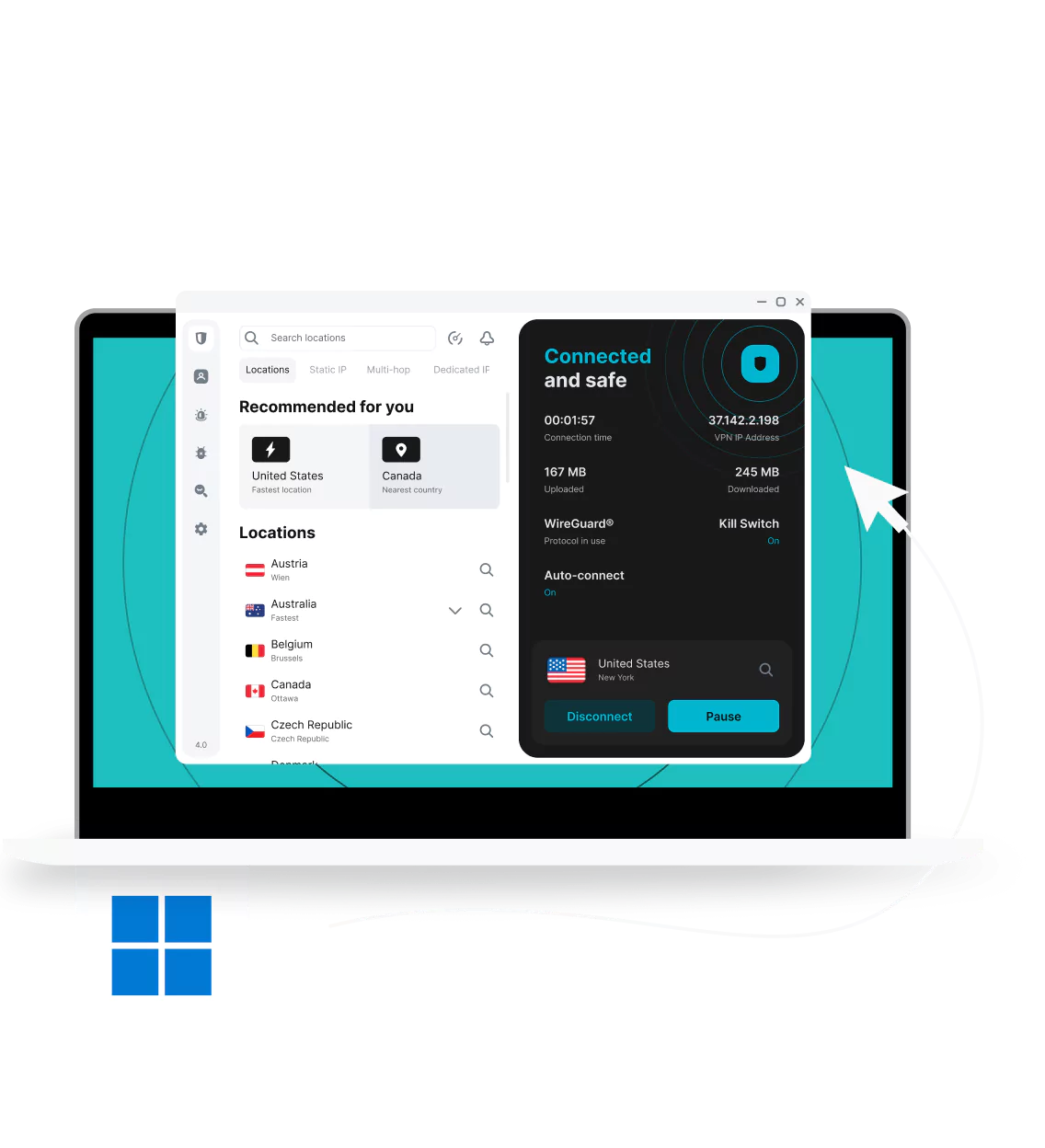
First, choose a VPN service that fits your needs. Download the VPN app from the official website or the Microsoft Store. Open the downloaded file and run the installer. Follow the on-screen instructions to complete the setup. After installation, launch the VPN app. Log in using your account details. Select a server location and click the connect button. Your VPN is now active and protecting your connection.
Configuring Vpn Settings
Open the VPN app and go to the settings menu. Adjust the startup option to launch VPN automatically with Windows. Enable the kill switch feature to block internet if the VPN disconnects. Choose your preferred VPN protocol for better speed or security. Set the app to connect to the fastest server automatically. Customize DNS settings if needed to improve browsing speed. Save changes before exiting the settings menu.
Troubleshooting Common Issues
If the VPN fails to connect, restart your computer first. Check your internet connection and try again. Disable other VPN or proxy services that might conflict. Update the VPN app to the latest version. Clear the VPN app cache or reinstall it if problems persist. Contact your VPN provider’s support for help with specific errors. Keep your Windows system updated to avoid compatibility issues.

Credit: apps.microsoft.com
Optimizing Vpn Performance
Optimizing VPN performance on Windows enhances your browsing and streaming experience. A fast and stable VPN connection keeps your data safe without slowing you down. Small changes can make a big difference in speed and reliability.
Improving Connection Speeds
Choose a VPN protocol that balances speed and security. Protocols like WireGuard and OpenVPN are good options. Close other programs that use the internet to free up bandwidth. Restart your router to clear network issues. Use a wired connection instead of Wi-Fi for better stability. Avoid peak hours when internet traffic is high.
Selecting The Best Server Locations
Pick a server close to your physical location for faster response times. Nearby servers reduce the distance data travels. Select servers with low user load for better performance. Some VPN apps show server load info. Test different servers to find the fastest one. Use servers in countries with good internet infrastructure.
Avoiding Bandwidth Throttling
ISPs sometimes slow down your internet for certain activities. A VPN hides your traffic, stopping throttling. Use VPNs with strong encryption to mask your data. Check your VPN’s ability to bypass ISP restrictions. Avoid free VPNs that may limit speed or data. Regularly update your VPN app to maintain performance.
Vpn Security Features
A VPN for Windows offers strong security features to protect your online activity. These features keep your data safe from hackers and spying. They also help maintain your privacy by hiding your identity and location. Understanding these security tools helps you choose the right VPN for your needs.
Encryption Protocols Explained
Encryption scrambles your data so no one can read it. VPNs use different protocols to encrypt your connection. OpenVPN and WireGuard are popular choices. They balance speed and security well. AES-256 encryption is common and very strong. It makes your information nearly impossible to crack.
Kill Switch And Leak Protection
A kill switch stops internet traffic if the VPN drops. This prevents your real IP address from showing. Leak protection blocks DNS and IP leaks. These leaks can reveal your identity. Together, these features keep your data safe even during connection issues.
Multi-factor Authentication
Multi-factor authentication adds a second step to log in. It asks for a code from your phone or email. This extra layer stops hackers from accessing your account. It makes your VPN account much safer. Many VPNs offer this feature to protect your privacy.
Using Vpn With Windows Apps
Using a VPN with Windows apps adds a layer of privacy and security. It helps protect your data from hackers and trackers. VPNs can also help bypass regional restrictions. This lets you access more content on your favorite apps. Many Windows applications work smoothly with VPNs, improving your online experience.
Vpn For Browsers
VPNs work well with browsers like Chrome, Edge, and Firefox. They hide your real IP address while you surf the web. This stops websites from tracking your location. VPNs also block ads and harmful sites. Using a VPN in your browser keeps your searches private and safe.
Gaming And Streaming With Vpn
VPNs help reduce lag and improve connection stability for games. They allow access to games not available in your country. Streaming apps like Netflix and Hulu can also benefit. VPNs let you watch shows from different regions. This opens up more entertainment options for Windows users.
Vpn On Microsoft Store Apps
Many Microsoft Store apps connect to the internet. VPNs protect your data on these apps too. They keep your information safe during app updates and downloads. Using a VPN ensures your apps stay secure on public Wi-Fi. This way, you can use store apps with peace of mind.
Legal And Ethical Considerations
Using a VPN for Windows brings many benefits, but it also raises legal and ethical questions. Understanding these factors helps you use VPNs safely and responsibly. Laws vary widely by country. Ethical use protects both you and others online.
Vpn Legality In Different Countries
VPN laws differ around the world. Some countries allow VPN use freely. Others ban or restrict VPNs. In some places, using a VPN can lead to fines or jail time. Check local laws before using a VPN. Staying informed avoids legal trouble.
Some governments monitor VPN traffic closely. They block VPN servers or require registration. These rules aim to control internet access. Remember, not all VPN services work in restricted regions.
Ethical Use Of Vpn Services
Using a VPN ethically means respecting laws and online rights. Avoid illegal activities like hacking or spreading malware. VPNs protect privacy but do not excuse harmful acts. Use VPNs to secure your data and browse safely.
Respect others’ privacy and avoid bypassing content restrictions unfairly. Ethical VPN use supports a safer internet for everyone. Think about the impact of your actions online.
Credit: surfshark.com
Advanced Vpn Tips For Windows Users
Advanced VPN tips help Windows users get more from their VPN service. These tips improve privacy and speed. They also make VPN use more convenient. Understanding these options enhances security and browsing experience on Windows.
Setting Up Split Tunneling
Split tunneling lets you choose which apps use the VPN. Other apps connect directly to the internet. This saves bandwidth and boosts speed. It also helps with apps that need local network access. Most VPNs for Windows have split tunneling options in settings.
Using Vpn With Router
Installing a VPN on your router protects all devices at once. It covers smartphones, tablets, and smart TVs. This method avoids setting up VPN on each device. It keeps your whole home network safer. Check your router supports VPN before setup.
Automating Vpn Connections
Automate VPN to connect at startup. This protects you without extra steps. Many VPN apps offer auto-connect features. Set VPN to connect on untrusted Wi-Fi networks. This reduces risk on public or unknown Wi-Fi.
Frequently Asked Questions
What Is The Best Vpn For Windows In 2024?
The best VPN for Windows in 2024 offers fast speeds, strong security, and user-friendly apps. Top options include ExpressVPN, NordVPN, and Surfshark. These VPNs support Windows 10 and 11, provide reliable connections, and unblock geo-restricted content efficiently.
How Do I Install A Vpn On Windows?
To install a VPN on Windows, download the VPN app from the provider’s website. Run the installer and follow the setup prompts. After installation, open the app, log in, and connect to a preferred server to secure your Windows device.
Can Vpns Improve Windows Online Privacy?
Yes, VPNs enhance Windows online privacy by encrypting internet traffic. They hide your IP address, making your browsing anonymous. This protects your data from hackers, ISPs, and trackers, ensuring safer and private internet use on your Windows system.
Are Free Vpns Safe For Windows Users?
Free VPNs often come with limitations like data caps and slower speeds. Some may log user data or show ads. For secure, reliable Windows protection, paid VPNs are recommended as they offer better privacy and performance.
Conclusion
Using a VPN for Windows keeps your data safe and private. It helps you browse the internet without worry. You can access websites and services securely from anywhere. A good VPN also protects you on public Wi-Fi networks. Choose a VPN that is easy to use and reliable.
Stay protected and enjoy a safer online experience today. Remember, online privacy is important for everyone. Protect yourself with the right VPN for Windows.