Are you looking for an easy way to create stunning designs without needing expert skills? The Crello Design Tool is here to transform your creative ideas into eye-catching visuals in just minutes.
Whether you want to design social media posts, flyers, or videos, Crello gives you all the tools you need in one place. Imagine having thousands of ready-to-use templates and simple drag-and-drop features right at your fingertips. Ready to see how Crello can make your design process faster, smoother, and more fun?
Keep reading to discover how this powerful tool can help you bring your ideas to life effortlessly.
Crello Basics
Understanding the basics of Crello helps you start creating designs easily. This tool lets anyone make visuals without needing design skills. It offers many templates and tools to simplify the process. You can create images, animations, and videos for social media or other uses.
Below, we explore what Crello is, its plan options, and the user interface. This knowledge guides you through the main features and choices Crello provides.
What Is Crello
Crello is an online graphic design tool made for simple and quick creation. It offers thousands of templates for various needs like posts, ads, and invitations. You can customize designs by adding text, photos, and animations. Crello works on web browsers, so no software download is needed.
It is suitable for beginners and small businesses. Crello also supports video and animation designs, making it versatile. The tool saves time by offering ready-made layouts and easy editing.
Free Vs Pro Plans
Crello provides two main plans: Free and Pro. The free plan includes access to many templates, photos, and design tools. It allows creating and downloading designs without cost. However, some premium templates and features are locked.
The Pro plan offers full access to all templates and design assets. Users get unlimited downloads and can create animations and videos without limits. Pro also includes brand kits to keep your style consistent. This plan suits frequent users or businesses needing more design options.
User Interface Overview
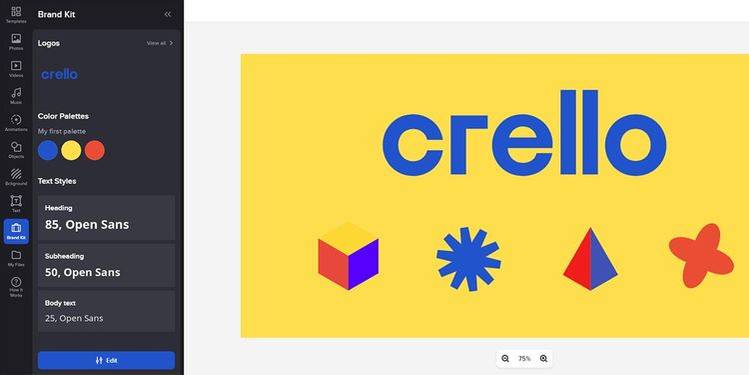
Crello’s interface is clean and easy to use. The left panel shows templates and design elements. The center area is the workspace where you edit your design. On the right, you can adjust colors, fonts, and other settings.
Drag and drop makes adding images and objects simple. The top menu contains options for saving, downloading, and sharing your work. Icons and labels guide users through each step clearly. Overall, the interface helps beginners create professional designs quickly.
Credit: www.makeuseof.com
Starting Your First Design
Starting your first design with Crello is simple and fun. The tool offers many features that help you create great graphics quickly. You do not need to be an expert to make professional designs. This guide will help you begin your journey step-by-step.
Choosing Templates
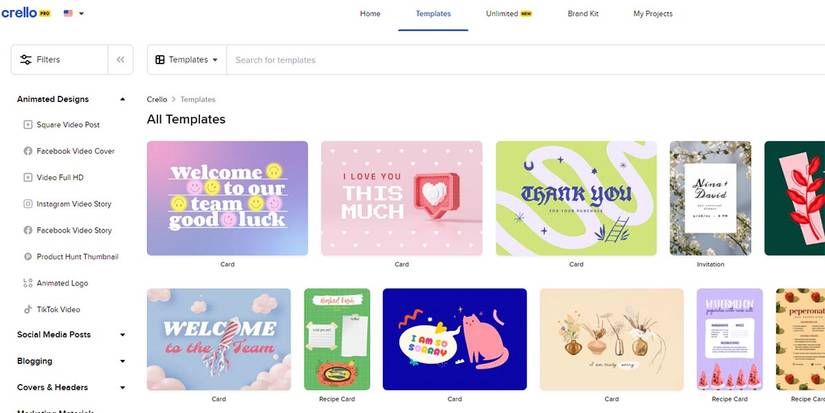
Templates give you a strong start for any design project. Crello has thousands of ready-made templates for different needs. You can pick a template based on your project type, like social media posts or flyers. Templates save time and make your design look polished. You only need to select one and start customizing it.
Uploading Images
Adding your own images makes the design personal. Crello allows you to upload photos from your device easily. Just drag and drop your images into the workspace. You can use photos, logos, or artwork to fit your style. Uploaded images stay saved for future designs, making your work faster next time.
Using Design Elements
Design elements include shapes, icons, text, and stickers. Crello offers a large library of these elements. You can add and arrange them to enhance your design. Each element is easy to resize, move, or change color. Using different elements helps your design stand out and look more creative.
Design Features
Crello offers a range of design features that make creating visuals simple and fun. These features help you edit photos, add animation, and work with text easily. Each tool is designed to help you make professional-looking designs quickly.
Photo Editing Tools
Crello provides easy photo editing tools for beginners and pros. You can crop, resize, and adjust brightness or contrast. Filters and effects help improve images with just a few clicks. Removing backgrounds is fast and smooth. These tools give your photos a polished look.
Animation And Video
Adding movement to your designs is simple with Crello’s animation options. Choose from many animated templates or create your own. You can add animated stickers, objects, and transitions. Video editing features let you trim clips and add sound. This makes your projects more engaging.
Text And Fonts
Crello offers a large library of fonts for all styles. You can change font size, color, and spacing easily. Text effects like shadows and outlines add depth. The tool supports multiple text boxes for flexible layouts. This helps you create clear and attractive messages.

Credit: www.makeuseof.com
Tips For Stunning Visuals
Creating stunning visuals in Crello is simple with the right tips. Effective use of colors, layouts, and effects can make designs pop. Small changes often produce big differences. Focus on key design elements to attract attention and communicate clearly.
Color Schemes
Choose colors that match your brand or message. Use Crello’s color palette tool to find balanced combinations. Stick to two or three main colors to keep designs clean. Contrast helps important parts stand out. Soft backgrounds with bright accents often work well.
Layout Techniques
Arrange elements with plenty of space around them. Use grids and alignment tools in Crello for order. Place the most important items where eyes go first, usually top left. Balance text and images to avoid clutter. White space gives your design room to breathe.
Using Filters And Effects
Apply filters to enhance photos without overdoing it. Crello offers many effects like blur, brightness, and shadows. Use these to add depth or focus to key areas. Keep effects subtle to maintain a professional look. Test different filters to find the best fit for your design.
Crello On Mobile
Crello offers a smooth mobile experience for users who want to design on the go. The mobile version keeps many features found in the desktop tool. It lets you create, edit, and share designs from your phone or tablet. This flexibility is perfect for busy creators and marketers.
App Installation
Installing Crello on mobile is simple. Visit your device’s app store and search for “Crello.” The app is free to download and works on both iOS and Android devices. After installation, sign in with your existing account or create a new one. The app opens quickly and loads your saved projects for easy access.
Mobile Design Workflow
The design workflow on Crello’s mobile app is user-friendly. Start a new project by choosing a template or a blank canvas. The app offers drag-and-drop tools for adding text, images, and shapes. Editing tools like resizing and color changes are easy to use with touch controls. The interface is clean, so you focus on creativity without distractions.
Syncing With Desktop
Crello syncs your work between mobile and desktop automatically. Any changes made on your phone appear on your desktop, and vice versa. This seamless syncing ensures your projects stay updated across devices. You can start a design on mobile and finish it on a computer without losing progress. Cloud storage keeps your designs safe and ready anytime.
Comparing Crello To Competitors
Choosing the right design tool matters for your projects. Crello stands out among many options. Comparing Crello to its competitors helps understand its strengths and limits. This section explores how Crello matches up with popular tools like Canva and highlights its unique features. It also guides when Crello is the best choice for your design needs.
Crello Vs Canva
Crello and Canva both offer user-friendly design platforms. Canva has a larger template library and more integrations. Crello provides a simpler interface that beginners find easy to use. Canva supports team collaboration better than Crello. Crello allows more animation options for social media posts. Both tools offer free plans with premium upgrades. Your choice depends on your design goals and preferences.
Unique Crello Features
Crello offers thousands of animated templates not found in all competitors. It includes a built-in video editor for short clips. Crello’s design library has many customizable graphic elements. It supports transparent backgrounds for easy logo creation. The platform updates frequently with seasonal templates. Crello also integrates an AI image generator to help create visuals faster. These features make Crello a versatile tool for quick, attractive designs.
When To Choose Crello
Choose Crello if you want easy animation tools. It suits users who create social media content often. Crello works well for quick marketing graphics and videos. If you prefer a clean, simple interface, Crello fits well. It is a good option for small businesses and freelancers. Crello’s free plan offers strong features without cost. For beginners who want to learn design basics, Crello is helpful.
Advanced Tools
Crello offers a set of advanced tools that help users create professional designs easily. These tools are built to save time and improve creativity. They suit beginners and experienced designers alike. Below are some key features that stand out in Crello’s toolbox.
Ai Image Generator
The AI Image Generator creates unique visuals from simple text. Just type your idea, and the tool crafts images for your project. This feature helps add originality without searching for photos. It boosts creativity by offering fresh design elements quickly.
Brand Kit Setup
Brand Kit Setup lets you store your brand’s colors, fonts, and logos. This keeps your designs consistent across all projects. You can apply your brand style with a single click. It saves time and ensures your visuals look professional every time.
Collaboration Features
Collaboration Features allow multiple users to work on designs together. Team members can share feedback and make edits in real-time. This makes group projects smoother and faster. It helps keep everyone on the same page and improves teamwork.
Credit: www.makeuseof.com
Saving And Sharing
Saving and sharing your designs in Crello is simple and efficient. The tool offers multiple ways to keep your work safe and share it with others quickly. You can export your projects in various formats and customize settings for the best quality. Sharing directly to social media platforms is also easy, saving time and effort.
Export Options
Crello allows exporting designs in formats like JPG, PNG, and PDF. You can choose the file type based on your needs. This flexibility helps maintain the quality of your images. Some export options support transparent backgrounds, perfect for logos or overlays. You can also export animated designs as MP4 or GIF files.
Social Media Integration
Sharing on social media is built into Crello. You can post your creations directly to platforms like Facebook, Instagram, and Twitter. This saves steps compared to downloading and uploading manually. Crello also supports scheduling posts for later times. This feature helps keep your social media content consistent.
Download Settings
Before downloading, Crello lets you adjust resolution and size. You can select high or standard quality depending on your use. Lower resolution saves file space for quick uploads. High resolution is best for printing or detailed work. These settings ensure your design looks great everywhere you use it.
Troubleshooting
Troubleshooting is essential for smooth use of Crello Design Tool. It helps solve common problems and keeps your design work running. This guide covers frequent issues, customer support options, and useful resources. Follow these tips to fix errors quickly and improve your experience.
Common Issues
Sometimes, Crello may load slowly or not open designs. This can happen due to poor internet or browser problems. Another issue is missing fonts or images in your project. Export errors, like failed downloads or low-quality files, may also occur. Clear your browser cache and update your app to fix many problems. Restarting your device often helps too.
Customer Support
Crello offers customer support to help with your troubles. You can contact them via email or live chat on their website. Support teams usually respond within a few hours. Provide clear details about your problem to get faster help. Keep your account and project info ready when asking for support.
Helpful Resources
Crello provides many resources to solve issues yourself. The Help Center contains step-by-step guides and FAQs. Video tutorials show how to use features and fix errors. Community forums let you ask other users for advice. These resources save time and improve your skills.
Frequently Asked Questions
Is Crello Free?
Crello, now VistaCreate, offers a free plan with thousands of templates and basic design features. Pro plans unlock advanced tools.
What Happened To Crello?
Crello rebranded as VistaCreate, offering free and paid plans for easy, professional graphic and video design online.
Is Crello Similar To Canva?
Crello, now VistaCreate, closely resembles Canva as an easy-to-use graphic design tool with free and paid plans. Both offer templates, images, and video editing features for quick, professional designs.
Does Crello Offer A Free Plan?
Yes, Crello (now VistaCreate) offers a free plan with thousands of templates and basic design features.
Conclusion
Crello Design Tool offers an easy way to create beautiful graphics. It suits beginners and pros alike. You can make images, videos, and animations quickly. Many free templates help you start fast. The tool works well for social media and marketing needs.
Try it to add creativity to your projects today.