Looking for a simple way to organize your work and keep your projects on track? Trello might just be the tool you need.
Whether you’re managing personal tasks or collaborating with a team, Trello’s visual boards make it easy to see what’s done, what’s next, and who’s responsible. You can customize your workflow, add unlimited cards, and even integrate other apps — all in one place.
But is Trello right for your style and needs? You’ll discover how Trello works, who benefits most from its free plan, when it makes sense to upgrade, and what limitations you should watch out for. Keep reading to find out if Trello can truly simplify your life and boost your productivity.

Credit: thedigitalprojectmanager.com
Trello Basics
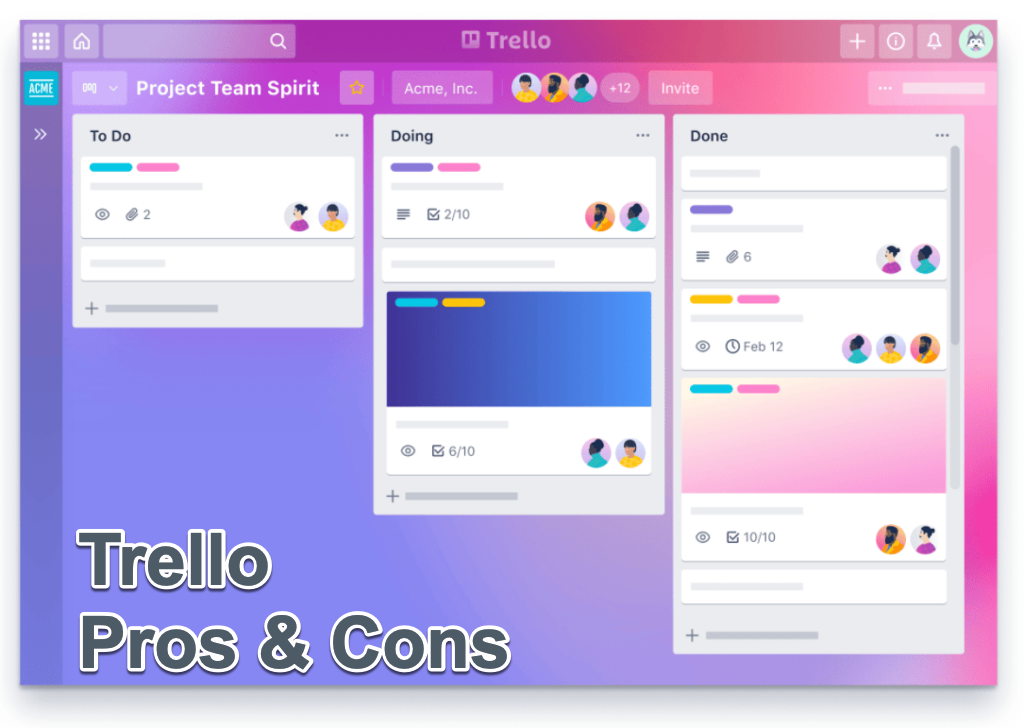
Trellois a simple tool that helps organize tasks and projects visually. It uses boards, lists, and cards to keep work clear and easy to follow. Teams can see what needs to be done and who is working on what.
Key features include:
- Boards:To hold projects or topics.
- Lists:To organize tasks step-by-step.
- Cards:To add tasks, notes, and due dates.
- Drag and drop:Move cards between lists easily.
- Collaboration:Share boards and assign tasks.
People who benefit most from Trello are students, small teams, and anyone managing personal projects. It works well for simple to medium complexity tasks. It keeps work organized without too much setup.
Credit: screenful.com
Getting Started With Trello
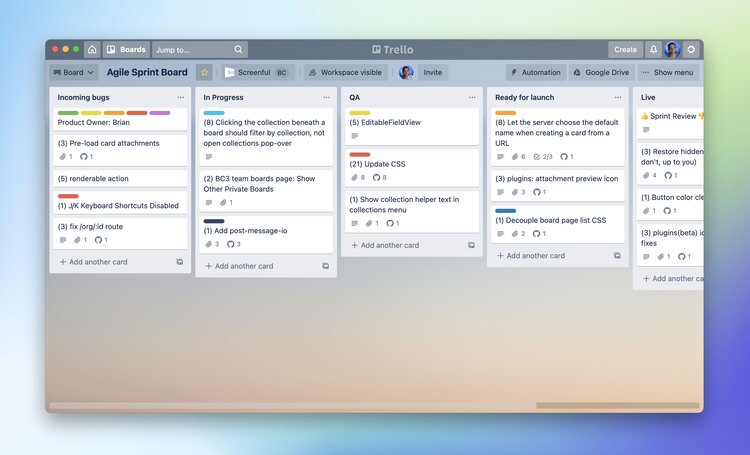
Creating boardsin Trello lets you organize projects easily. Each board holds cards, which are tasks or ideas. Cards move through different liststo show progress or steps.
Use lists to group cardsby stages or categories. For example, lists can be “To Do,” “Doing,” and “Done.” This way, you see exactly where each task stands.
Customizing your workspace helps you work better. Change background colorsand add stickersto make boards fun and clear. You can also use labelsto mark priorities or types of work.
Free Vs Paid Plans
The Free Planincludes unlimited cardsto add tasks and to-dos. Users get unlimited Power-Upsfor extra features and integrations. Custom backgrounds and stickers help personalize boards. Activity logs track all changes made in projects. Mobile apps are available for both iOS and Android devices.
This plan suits individualsorganizing personal tasks and small teamswith simple workflows. It offers enough tools to manage basic projects without cost.
- Unlimited cards and Power-Ups
- Custom backgrounds and stickers
- Unlimited activity logs
- Mobile apps for iOS and Android
Upgrading makes sense when advanced viewslike Calendar or Timeline are needed. Teams needing better admin controlsand security featuresalso benefit from paid plans. Automation and custom fields are other reasons to upgrade.
| Plan | Price | Main Features |
|---|---|---|
| Free | $0 | Unlimited cards, Power-Ups, basic features |
| Paid | From $5/user/month | Advanced views, automation, admin tools, security |
Boosting Productivity With Trello
Organize tasksby creating lists and cards for each job. Assign due dates to keep deadlines clear. Use labels to mark priorities or categories. Break big tasks into smaller steps. This helps track progress easily. Set reminders so no task is forgotten.
Automation with Power-Ups saves time. Use built-in tools to move cards automatically. Connect Trello with apps like Google Drive or Slack. This reduces manual work. Power-Ups can send alerts or create reports without extra effort.
Team collaboration improves with shared boards. Everyone sees updates in real-time. Comment directly on cards to discuss details. Assign tasks to specific members for clear responsibility. Use checklists to track what is done. This keeps communication simple and organized.
Overcoming Trello Limitations
Complex projectscan overwhelm Trello’s simple boards. Tasks may get lost in many cards. Breaking projects into smaller, clear lists helps keep focus. Use labels and due dates to track priorities easily.
Too much information clutters the screen fast. Keeping boards tidy by archiving done cards reduces overload. Filters and search tools help find important tasks quickly. Limit the number of active cards per list.
| Missing Feature | Workaround |
|---|---|
| Advanced Reporting | Use external tools like Google Sheets or third-party apps. |
| Native Calendar | Sync Trello with Google Calendar or Outlook. |
| Complex Workflow | Create custom boards and use Power-Ups for automation. |
Advanced Trello Features
Custom Fieldsin Trello let you add extra details to cards. Use text, numbers, dates, or dropdowns. This helps keep important infoeasy to find and update.
Third-Party Appsconnect with Trello to add more power. Apps like Slack, Google Drive, and Evernote help you work faster. Integrations bring everything into one place.
Tracking Progressuses built-in tools like checklists and due dates. You can see what tasks are done or still pending. Reportsshow how your project moves forward, helping teams stay on track.
Common Challenges
Trellomay face performance issueswhen handling large boards or many users. This can cause delays and slow loading times, affecting usability. Some users report that the interface feels clutteredduring heavy use, which can reduce productivity.
It requires a stable internet connectionto work properly. Without it, users cannot access their boards or update tasks. This dependence can be a problem in places with poor internet service.
| Limit | Details |
|---|---|
| Storage | Free plan allows up to 10 MB per file attachment. |
| Attachments | Limited to certain file types and sizes, may restrict sharing large files. |
Choosing The Right Plan
Assessing your team needshelps in choosing the right Trello plan. Small teams may find the free planenough for simple tasks. Larger groups might need advanced featuressuch as automation and custom fields. Consider how many members will use the tool and what features they require daily.
Balancing cost and featuresis important. Paid plans offer more security, views, and admin controls. Free plans limit some capabilities but still support basic project management. Weigh the benefits of extra tools against your budget to avoid overspending.
Maximizing return on investmentmeans picking a plan that fits your work style. Upgrading only when new features add real value saves money. A plan that grows with your team ensures efficient task handling and better collaboration.

Credit: thedigitalprojectmanager.com
Frequently Asked Questions
What Is Trello Mostly Used For?
Trello is mostly used for visual project and task management. It helps teams organize, prioritize, and track work collaboratively.
Is Trello Actually Free?
Yes, Trello offers a free plan with unlimited cards, power-ups, activity logs, and mobile apps. It suits individuals and small teams.
What Is A Disadvantage Of Trello?
Trello struggles with managing complex projects due to its simple Kanban structure. It lacks advanced features like in-app chat and detailed reporting. Users may face information overload and need stable internet. Some useful tools require paid plans, limiting free plan functionality for larger teams.
What Is Trello Vs Jira?
Trello offers simple, visual project management using boards and cards. Jira provides advanced issue tracking and workflow customization for software teams. Trello suits small teams and basic projects, while Jira fits complex projects and technical development workflows.
Conclusion
Trello offers a simple way to organize tasks and projects visually. It works well for individuals and small teams with clear workflows. The free plan covers basic needs, while paid plans add more tools for bigger teams and complex projects.
Trello’s easy design helps keep work clear and manageable. Consider your project size and needs before choosing a plan. Overall, Trello can help improve your team’s focus and productivity with minimal effort. Try it to see how it fits your work style.