
Imagine having a powerful tool right at your fingertips that can organize your data, simplify complex calculations, and help you make smarter decisions faster. That’s exactly what spreadsheet tools offer you.
Whether you’re managing your personal budget, tracking a project, or analyzing business data, these tools transform chaos into clarity. You’ll discover how spreadsheet tools like Microsoft Excel and Google Sheets can boost your productivity, save you time, and make your work easier.
Ready to unlock the full potential of your data? Keep reading and see how mastering these tools can change the way you work every day.
Popular Spreadsheet Tools
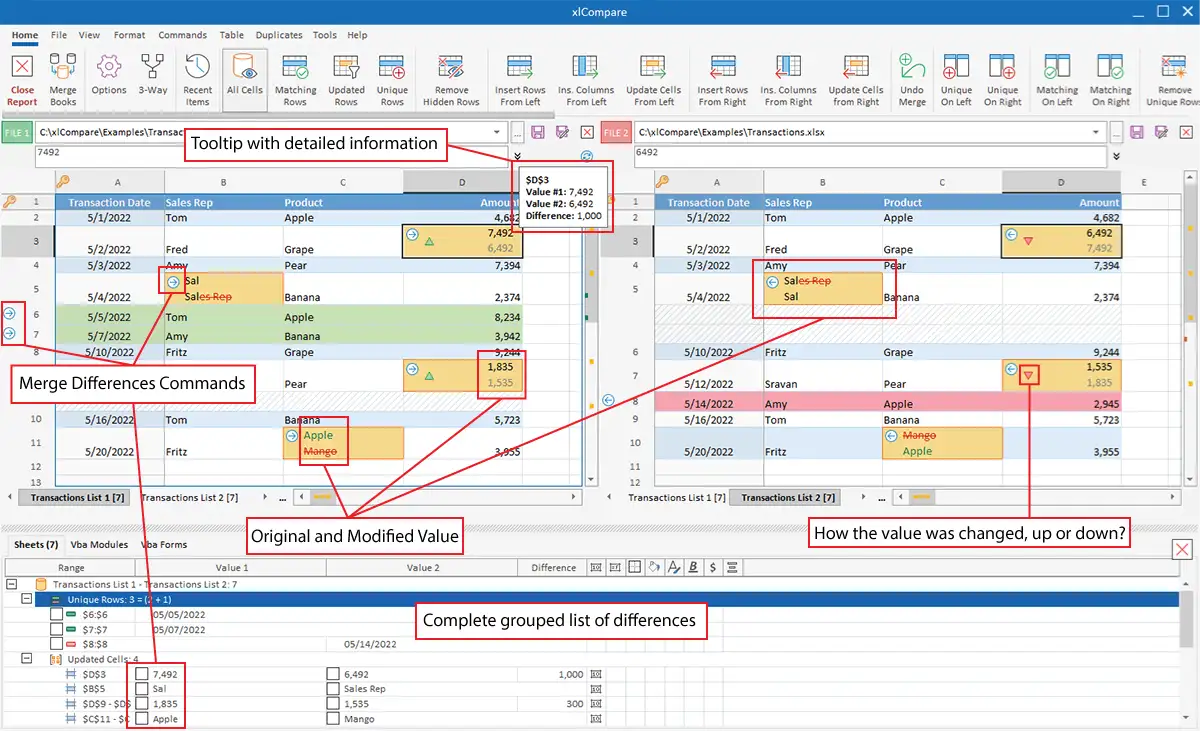
Spreadsheet tools help organize and analyze data efficiently. They use rows and columns to display information clearly. Many tools offer features for calculations, chart creation, and data management. Choosing the right tool depends on your needs and preferences. Below are some popular spreadsheet tools used worldwide.
Microsoft Excel
Microsoft Excel is a widely used spreadsheet tool. It offers powerful functions for data calculation and analysis. Excel supports complex formulas, pivot tables, and chart creation. It works well for business, finance, and personal use. Excel files can be saved locally and shared easily. It has many templates to simplify common tasks.
Google Sheets
Google Sheets is a cloud-based spreadsheet tool. It allows real-time collaboration with others anywhere. Sheets saves files automatically in Google Drive. It supports basic and advanced formulas similar to Excel. Users can create charts and use add-ons for extra features. Google Sheets works on any device with internet access.
Emerging Ai-powered Tools
New AI-powered spreadsheet tools are entering the market. These tools help automate data entry and analysis. AI features suggest formulas and detect data patterns quickly. Some tools generate charts and reports automatically. They aim to reduce manual work and improve accuracy. AI spreadsheets are ideal for users wanting smart assistance.
Credit: spreadsheettools.com
Core Spreadsheet Features
Spreadsheets are essential tools for organizing and analyzing data. Their core features help users manage information efficiently. Understanding these features is key to using spreadsheet tools effectively.
Cells, Rows, And Columns
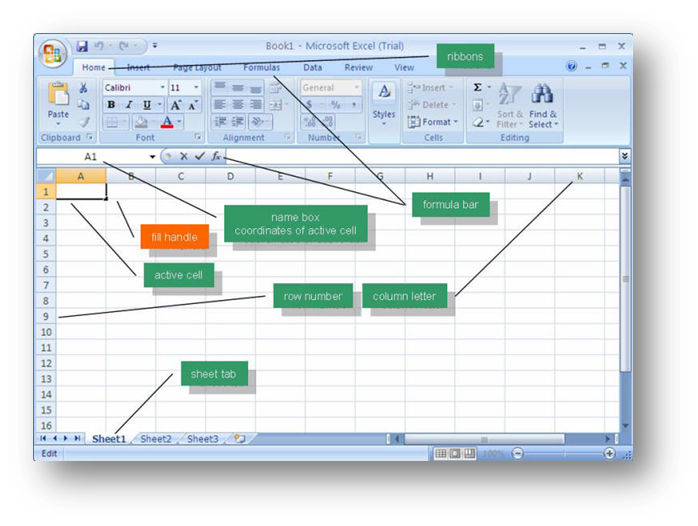
Cells are the basic units in a spreadsheet. Each cell holds data or formulas. Rows run horizontally and are numbered. Columns run vertically and use letters for identification. Together, they create a grid for data entry and manipulation.
Worksheets And Workbooks
A worksheet is a single page within a spreadsheet file. It contains a grid of cells for data input. A workbook is the entire file that holds one or more worksheets. Users can organize different data sets within a single workbook.
Formulas And Functions
Formulas perform calculations using cell data. They help automate tasks like addition or subtraction. Functions are predefined formulas that simplify complex calculations. Common functions include SUM, AVERAGE, and IF statements. These features save time and reduce errors.
Key Uses Of Spreadsheets
Spreadsheets are powerful tools used across many fields. They help manage data simply and clearly. Their flexibility makes them suitable for various tasks. Understanding their key uses shows why they are essential for work and life.
Data Organization
Spreadsheets arrange data in rows and columns. This layout makes information easy to find. Users can sort and filter data quickly. Organizing data reduces errors and saves time. It helps keep all information neat and accessible.
Calculations And Formulas
Spreadsheets perform automatic calculations using formulas. They handle simple math like addition and subtraction. They also manage complex functions like averages and percentages. This feature reduces manual work and increases accuracy. Users can update data and see instant results.
Data Analysis And Reporting
Spreadsheets analyze data trends and patterns. They help create detailed reports from raw data. Users can summarize large data sets efficiently. This aids in making informed decisions. Reports can be customized to meet specific needs.
Charts And Visualizations
Spreadsheets create visual charts from data. These include bar, line, and pie charts. Visuals make complex data easier to understand. They highlight important information quickly. Charts improve presentations and communication.
Budgeting And Financial Tracking
Spreadsheets manage budgets and track expenses. They help users plan income and costs clearly. Financial tracking ensures spending stays within limits. Users can forecast future finances easily. This is useful for both personal and business money management.
Project Management
Spreadsheets organize tasks and deadlines for projects. They track progress and assign responsibilities. Users can set priorities and monitor schedules. This helps teams work together smoothly. Project management in spreadsheets improves efficiency.

Credit: serc.carleton.edu
Ai Integration In Spreadsheets
AI integration is changing how we use spreadsheet tools. It adds smart features that help users work faster. These smart tools can analyze data and suggest next steps. They reduce manual work and improve accuracy.
Many spreadsheet programs now include AI features. These help both beginners and experts handle data more easily. AI brings new ways to explore and understand information in spreadsheets.
Microsoft Copilot
Microsoft Copilot is an AI assistant built into Excel. It helps users create formulas and summaries quickly. Copilot can write text based on data in the sheet. It also suggests charts and visual aids. This tool saves time and reduces errors.
Ai-enhanced Data Insights
AI tools analyze large data sets in spreadsheets. They find patterns and trends automatically. Users get clear insights without complex steps. AI highlights important changes and forecasts future results. This makes data easier to understand and act on.
Automation And Productivity Boosts
AI automates repetitive tasks in spreadsheets. It can fill in data, clean errors, and update reports. Automation frees users to focus on decision-making. Productivity grows as tasks complete faster and with fewer mistakes. Spreadsheets become more powerful and user-friendly.
Choosing The Right Tool
Choosing the right spreadsheet tool can make your work easier and faster. Each tool offers different features. Some are simple, while others are more advanced. Picking a tool depends on your needs and how you plan to use it.
User Needs And Skill Levels
Think about what you need the tool to do. Do you need it for basic data entry or complex calculations? Your skill level matters too. Beginners might prefer tools with simple interfaces. Experts may want advanced functions and formulas. Choose a tool that matches your comfort and goals.
Collaboration Features
Many projects need teamwork. Choose a spreadsheet tool that allows easy sharing. Real-time editing helps teams work together without confusion. Commenting and version history are useful for tracking changes. Collaboration features save time and improve communication.
Compatibility And Accessibility
Check if the tool works on your devices. Some tools work online, others offline. Mobile access can be important for work on the go. Also, consider file formats for sharing with others. A tool compatible with popular formats avoids problems in exchanging data.
Credit: ils.unc.edu
Tips To Maximize Productivity
Improving productivity with spreadsheet tools saves time and reduces errors. Using efficient methods helps complete tasks faster. Simple habits can make a big difference in daily work.
Keyboard Shortcuts
Keyboard shortcuts speed up navigation and editing. Learn common keys like Ctrl+C to copy and Ctrl+V to paste. Use shortcuts to insert rows, format cells, and switch sheets quickly. This reduces mouse use and keeps your hands on the keyboard.
Template Utilization
Templates save time by providing ready-made layouts. Choose templates for budgets, schedules, or reports. Customizing templates keeps your work consistent. It also reduces repetitive setup for similar projects. Use templates to start projects faster and focus on data.
Data Validation Techniques
Data validation controls what users can enter. It helps avoid mistakes like wrong dates or numbers. Set rules to allow only certain values or formats. This keeps your data clean and reliable. Validation messages guide users to enter correct information.
Custom Functions And Macros
Custom functions perform special calculations not built-in. Macros automate repetitive steps with one command. Use them to save time on tasks done often. Learning basic scripting can improve your spreadsheets. Automation reduces errors and increases consistency.
Alternative Solutions
Spreadsheets are powerful but not always the best fit for every task. Alternative solutions offer focused features that can simplify complex jobs. These tools often provide better control and clearer visualization.
Choosing the right alternative depends on the specific needs of your project or business. Some tools excel at resource planning, while others serve as specialized spreadsheet substitutes with tailored functions.
Resource Planning Tools
Resource planning tools help manage time, people, and materials efficiently. They allow teams to allocate resources clearly and avoid conflicts. Unlike spreadsheets, these tools offer real-time updates and collaboration features.
Popular resource planning solutions include software like Microsoft Project and Smartsheet. They provide timelines, task assignments, and progress tracking in one place. This makes project management smoother and less error-prone.
Specialized Spreadsheet Alternatives
Specialized alternatives target specific tasks that spreadsheets handle poorly. For example, Airtable combines spreadsheet simplicity with database power. It lets users organize data with custom views and easy linking between tables.
Other examples include Notion and Coda, which integrate notes, tasks, and databases. These tools help teams work together and keep information connected. They reduce the risk of mistakes common in traditional spreadsheets.
Frequently Asked Questions
What Are Spreadsheet Tools?
Spreadsheet tools are software that organize, analyze, and calculate data using rows and columns. They support tasks like budgeting, data analysis, chart creation, and project management. Popular examples include Microsoft Excel and Google Sheets, which help users manage and visualize information efficiently.
What Is The Most Commonly Used Spreadsheet Tool?
Microsoft Excel is the most commonly used spreadsheet tool worldwide. It offers powerful features for data analysis, budgeting, and visualization. Many businesses and individuals rely on Excel for organizing and calculating data efficiently. Its versatility and user-friendly interface make it a top choice in spreadsheet software.
What Are The 10 Examples Of Spreadsheet Applications?
Ten examples of spreadsheet applications include Microsoft Excel, Google Sheets, Apple Numbers, LibreOffice Calc, Zoho Sheet, WPS Spreadsheets, Quip, Smartsheet, Airtable, and Apache OpenOffice Calc. These tools help organize, analyze, and visualize data efficiently.
Conclusion
Spreadsheet tools help organize and analyze data easily and quickly. They save time by handling calculations and creating charts. Using these tools improves decision-making and keeps projects on track. Simple functions and formulas make data clear and useful. Anyone can learn basic skills with a little practice.
Choose the right tool to fit your needs and goals. Start exploring spreadsheet tools today to work smarter and stay organized.