
If you’re searching for a powerful tool to boost your team’s creativity and collaboration, you’ve probably heard about Miro. But does it really live up to the hype?
In this Miro review, you’ll get a clear picture of what makes this online whiteboard platform stand out—and where it might fall short for your unique needs. Whether you’re leading remote meetings, planning projects, or brainstorming new ideas, understanding how Miro works can help you decide if it’s the right fit for your workflow.
Keep reading to discover honest insights and practical tips that can transform the way you and your team work together.
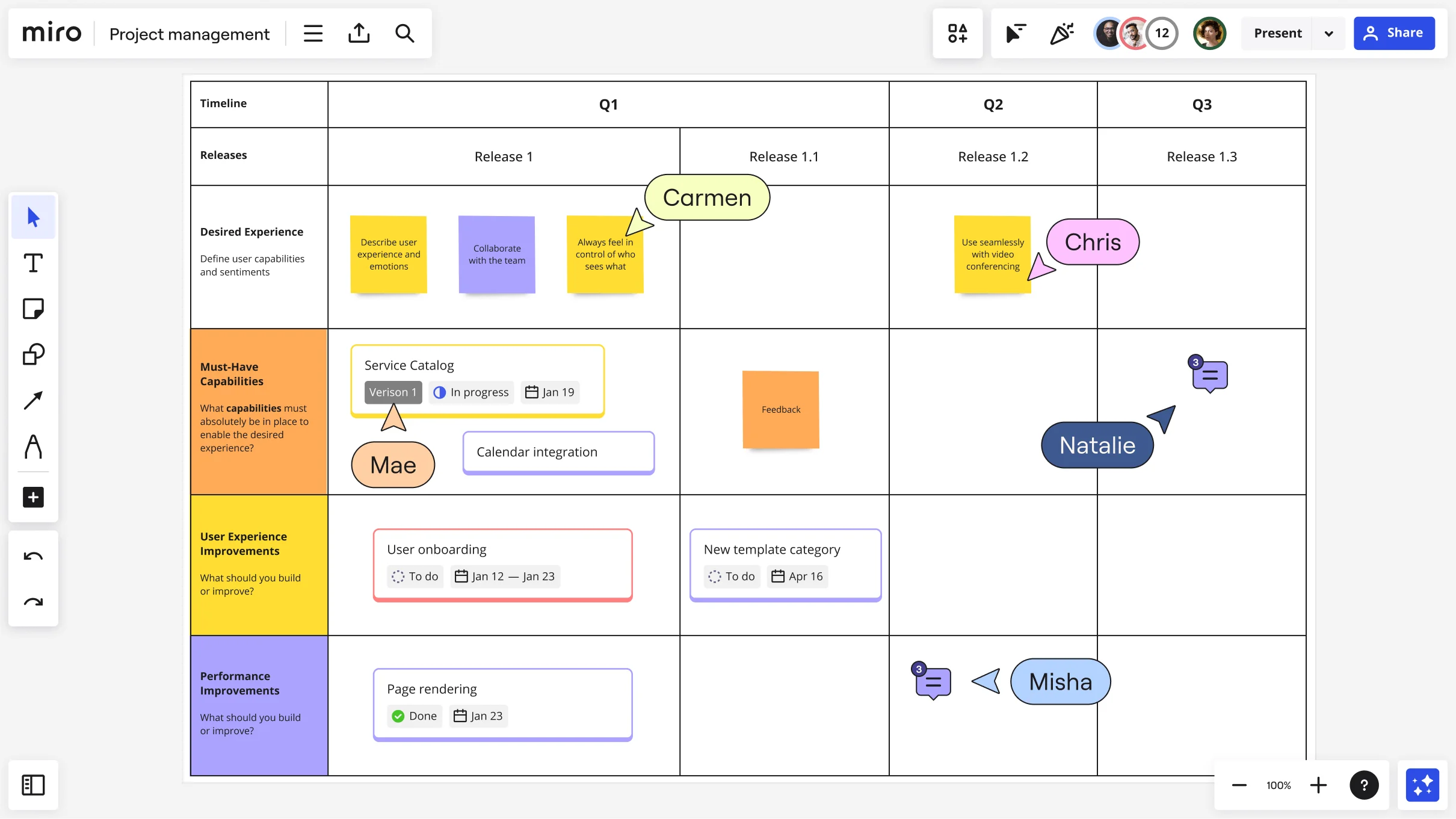
Credit: miro.com
Miro At A Glance
Miro is a popular online whiteboard platform designed for teams. It helps users brainstorm, plan, and collaborate easily. The platform supports both real-time and asynchronous teamwork. Miro’s tools and templates make complex projects simpler and more visual.
Many users appreciate its flexible canvas and strong integration with other apps. It suits remote and hybrid teams who need a shared workspace. Though some users mention occasional slowdowns and a basic mobile app, Miro remains a top choice for visual collaboration.
Platform Features
Miro offers an infinite digital canvas where users add notes, drawings, and shapes. It includes many templates for brainstorming, agile workflows, and mind mapping. The platform supports live collaboration with chat and video calls. Integrations with tools like Slack and Jira improve productivity. Users find the interface clean and easy to use on desktop. The mobile app, however, has fewer features and can be challenging for detailed tasks.
User Base And Popularity
Miro serves millions of users worldwide, ranging from small teams to large enterprises. Its flexible design fits various industries like education, marketing, and software development. The platform’s popularity grows due to its ability to unify remote teams. Users praise its role in making meetings more engaging and organized. Despite some drawbacks, Miro maintains a strong reputation for team collaboration.
Collaboration Tools
Miro provides a wide range of collaboration tools designed to help teams work together smoothly. These tools support different ways of communicating and sharing ideas. Teams can join in at the same time or work on their own schedule. The platform also connects with many other apps to keep work organized and efficient. This makes Miro a versatile choice for team projects and meetings.
Real-time Teamwork
Miro allows multiple users to work on the same board at once. Changes appear instantly for everyone involved. This live interaction helps teams brainstorm and solve problems faster. Video and chat features add more ways to communicate during sessions. Real-time teamwork helps keep everyone focused and involved. It reduces misunderstandings and speeds up decision-making.
Asynchronous Collaboration
Teams do not need to be online together to contribute. Miro lets users add notes, comments, and ideas anytime. This flexibility supports different time zones and work hours. Team members can review and respond when it suits them best. Asynchronous collaboration keeps projects moving without delays. It also allows more thoughtful input from each person.
Integration With Other Apps
Miro connects easily with popular tools like Slack, Jira, and Google Drive. These integrations help teams keep all their work in one place. Files, tasks, and updates sync automatically across platforms. Users save time switching between apps and avoid losing important information. The smooth integration supports better project tracking and communication.
Key Features
Miro offers a variety of key features that support teamwork and creativity. These features help users organize ideas, plan projects, and collaborate easily. The platform suits different work styles and needs, making it popular among many teams.
Infinite Canvas And Templates
Miro provides an infinite canvas where users can add unlimited content. This space allows free-form thinking without limits. The platform includes many templates for various purposes. These templates save time and guide users in creating clear visual boards. Templates cover project planning, mind mapping, and more.
Sticky Notes And Drawing Tools
Sticky notes are simple to use and help capture ideas quickly. Users can change colors and sizes to organize thoughts visually. Drawing tools allow sketching, highlighting, and connecting elements. These tools make brainstorming more interactive and fun. They help teams explain ideas clearly and visually.
Agile And Brainstorming Support
Miro supports Agile workflows with features like Kanban boards and sprint planning templates. Teams can track progress and assign tasks easily. The platform also supports brainstorming sessions with timers and voting options. These tools improve group decision-making and creativity. Miro keeps teams aligned and focused on goals.

Credit: www.tripadvisor.com
User Experience
User experience is a crucial part of any software review. It reflects how users interact with the tool daily. Miro, known for its online whiteboard and collaboration features, offers a mix of strengths and areas for improvement. Understanding the user experience helps potential users decide if Miro fits their needs.
Desktop And Web Interface
The desktop and web interfaces of Miro are clean and user-friendly. The layout is simple, making navigation easy for most users. Tools and features are well organized on the screen. Users can quickly create and share boards without confusion. Performance is smooth, even with multiple collaborators working at once. Some users mention slight delays with very large boards, but these cases are rare.
Mobile App Limitations
Miro’s mobile app offers basic functionality but lacks many features found on desktop. The smaller screen limits drawing and detailed work. Some advanced tools are missing or hard to use on mobile devices. This affects users who want to work on the go. The app is useful for quick checks or simple edits but not for full project management. Many users prefer switching to the desktop version for deeper work.
Learning Curve For New Users
New users may find Miro’s many features overwhelming at first. The variety of tools and templates can confuse beginners. However, the platform is designed to be intuitive. Basic tasks can be learned quickly with little training. Miro offers tutorials and guides to help users get started. Over time, users become more comfortable and can use advanced features effectively.
Performance Insights
Miro offers a dynamic platform for team collaboration and visual project management. Understanding its performance helps users gauge efficiency during intensive tasks. This section breaks down how Miro handles large boards and its speed in various conditions.
Handling Large Boards
Miro supports boards that grow with your project needs. It can manage many objects and content without crashing. Users report smooth navigation on moderately sized boards. However, extremely large boards with thousands of elements may slow down. Proper board organization can reduce delays. Splitting content into smaller boards improves overall handling.
Speed And Responsiveness
Miro generally responds quickly to user inputs. Drawing, dragging, and adding items happen in real time. Performance depends on internet speed and device power. Some users notice slight lag during peak usage hours. The web and desktop apps maintain good responsiveness. Mobile apps tend to be slower, especially on older devices. Regular updates aim to enhance speed and fix bugs.

Credit: thedigitalprojectmanager.com
Pricing And Support
Miro offers a range of pricing plans suitable for different users. The platform also provides customer support to help with any issues. Understanding the differences between free and paid plans helps you decide what fits your needs. Support quality and easy billing add to the overall experience.
Free Vs Paid Plans
The free plan lets users create up to three editable boards. It includes basic templates and core collaboration features. Paid plans offer unlimited boards and advanced tools. These plans suit larger teams or professionals needing more features. Pricing varies by plan, billed monthly or annually. Each paid tier unlocks additional integrations and admin controls. You can also learn more about Miro pricing by reading this article.
Customer Support Quality
Miro’s customer support is responsive and helpful. Free users access a knowledge base and community forums. Paid plans include email support with faster response times. Business and enterprise customers get priority support and dedicated managers. Users report clear guidance and quick solutions. Support channels include chat, email, and online resources.
Billing And Account Management
Miro’s billing system is straightforward and user-friendly. Users can upgrade or downgrade plans anytime. Payment methods include credit cards and PayPal. Invoices and receipts are available for download. Account settings allow easy management of team members and permissions. The billing dashboard shows payment history and upcoming charges.
Pros And Cons
Evaluating Miro means looking at both its benefits and limitations. Understanding these points helps users decide if it fits their needs. Below, we explore the main strengths and common drawbacks of Miro based on user feedback and expert reviews.
Strengths
Miro excels in real-time collaboration, supporting remote and hybrid teams effectively. Its infinite canvas offers vast space for ideas and planning. The platform includes many templates for brainstorming, Agile workflows, and project management. Users appreciate strong integrations with tools like Jira and Slack. The interface is clean and intuitive, making it easy to use for most users. Miro’s free tier provides useful features without cost. Customer support is generally responsive and helpful. These strengths make Miro a popular choice for visual collaboration and team alignment.
Common Drawbacks
Some users find Miro’s many features overwhelming at first. Large boards with heavy content can load slowly or feel clunky. The mobile app lacks full functionality, making detailed work challenging on phones or tablets. Pricing for paid plans is high, especially for small teams not needing all features. Account and billing management have caused frustration for some users. These drawbacks may affect productivity and user experience in certain situations.
Alternatives To Miro
Miro is a popular tool for teams to collaborate visually and organize ideas. Some users seek other options that might fit their needs better. Alternatives to Miro offer different features, pricing, and user experiences. Exploring these can help teams find the best fit for their workflow and budget. Here are some more Miro alternatives
Popular Competitors
Trello is a simple board tool for task management. It uses cards and lists to keep projects clear. Lucidspark offers a flexible digital whiteboard with easy sharing options. Microsoft Whiteboard integrates well with other Microsoft apps. Jamboard by Google is great for quick brainstorming and works with Google Workspace. Conceptboard focuses on visual project planning with strong feedback tools.
Choosing The Right Tool
Consider your team size and project type first. Check if the tool works on your devices and platforms. Look for features you need, like templates or real-time editing. Test the free versions to see how easy they are to use. Pricing matters for long-term use, so compare subscription plans. The right tool feels natural and helps your team work smoothly.
Boosting Team Productivity
Boosting team productivity is vital for any project’s success. Miro offers a flexible platform that helps teams work better together. It supports clear communication and smooth workflow. Teams can plan, share ideas, and track progress in one place. This helps save time and reduce misunderstandings. Using Miro effectively can improve focus and speed up decision-making.
The platform’s tools allow teams to visualize concepts and organize tasks. This visual approach makes complex projects easier to manage. It also encourages everyone to contribute. Teams feel more connected, even if members work remotely. Miro’s features help transform ideas into action quickly.
Tips For Effective Use
Start with a clear goal for each board. Choose templates that fit your project type. Keep boards simple to avoid confusion. Use sticky notes and colors to highlight key points. Assign tasks directly on the board to track responsibility. Encourage team members to update their progress regularly. Set time limits for meetings to maintain focus. Use comments for feedback instead of long emails. Regularly clean up boards to keep them organized.
Maximizing Collaboration Benefits
Invite all team members to participate actively. Use real-time editing to brainstorm ideas together. Combine video calls with the Miro board for better interaction. Share boards with external partners for seamless cooperation. Integrate Miro with other tools like Slack or Jira for smooth workflow. Use voting and timer features to make decisions faster. Encourage open communication to solve problems quickly. Celebrate milestones on the board to boost motivation.
Frequently Asked Questions
What Are The Disadvantages Of Miro?
Miro’s disadvantages include occasional slow performance with large boards, a steep learning curve for beginners, limited mobile app functionality, and costly paid plans. Some users find its many features overwhelming and report challenges with account and billing management.
Is Miro Reputable?
Miro is reputable, widely praised for its real-time collaboration, vast templates, and ease of use. Some users report occasional performance and mobile app issues. Overall, it remains a trusted platform for remote teamwork and planning.
Is Miro Russian Owned?
Miro is not Russian owned. It is a global company founded by Ukrainian entrepreneurs and headquartered in San Francisco, USA.
Conclusion
Miro offers a strong platform for team collaboration and creativity. Its wide range of templates and tools helps users brainstorm and plan effectively. Many find the interface simple and easy to use on desktops. Some users face slow loading with large boards or many users.
The mobile app lacks some features, making detailed work harder. Pricing can be high for teams not needing advanced functions. Overall, Miro suits teams wanting a flexible, visual workspace for remote or hybrid work. It stays a popular choice for many businesses worldwide.